Jul 25, 2026 · 3 min read · Edit
Setting a PDF’s Title, Author and Keywords Properly
Search results, reader tabs and file managers all display a PDF’s metadata title - which for most documents is something like “Microsoft Word - report_final_v2.docx”. Thirty seconds of metadata hygiene makes a document look deliberate.
How to use it
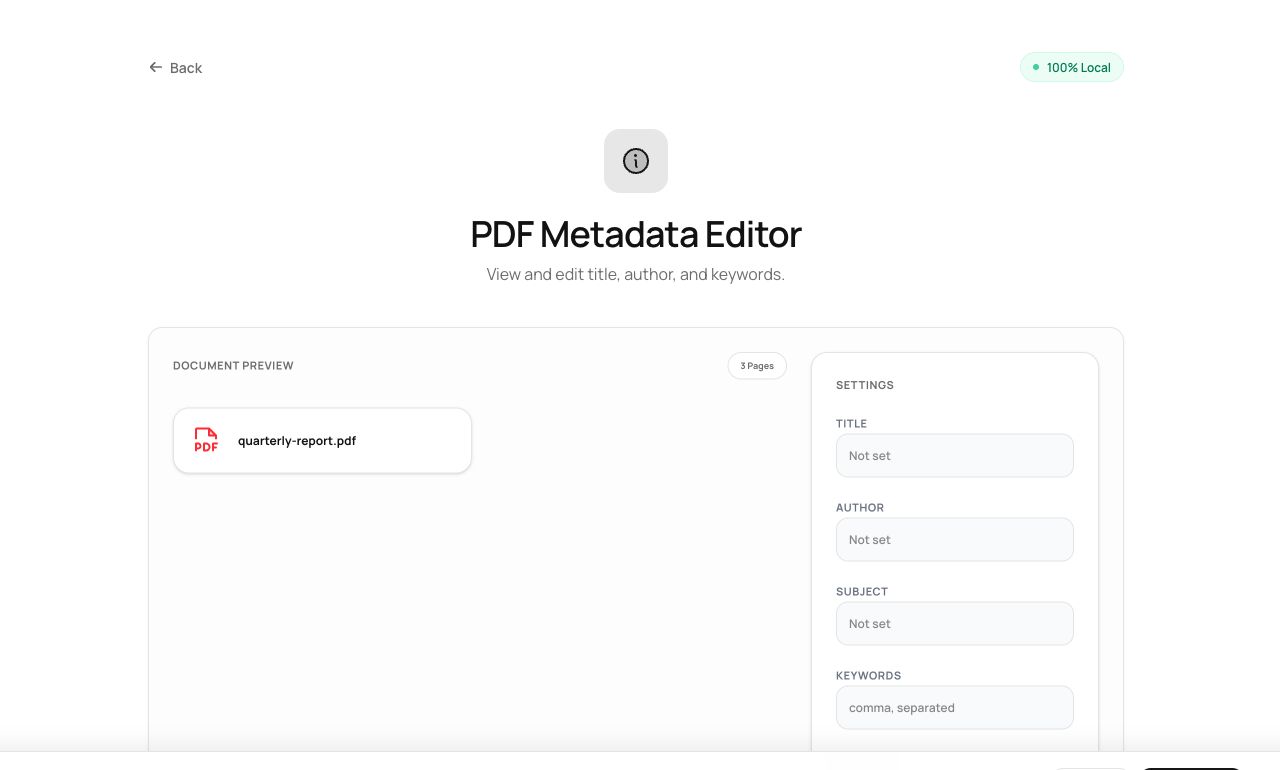
- Open Edit Metadata and choose the PDF - current fields load for inspection.
- Set Title, Author, Subject and Keywords.
- Process and download.
Try it now: open the Edit Metadata tool - no account, no upload, free.
What happens under the hood
The tool writes the standard information-dictionary fields readers and search engines consume, without touching page content. It deliberately doesn’t stamp its own “producer” fingerprint over yours.
Tips for better results
- The Title field is what Google shows for indexed PDFs - treat it like a page title.
- Keywords help internal document-management search more than the web; use the vocabulary your team actually searches.
Privacy, in one sentence
Your file is read into your browser's memory, processed there by JavaScript and WebAssembly, and handed back to you as a download - no server ever sees a byte of it. Close the tab and nothing remains.