Jul 24, 2026 · 4 min read · Edit
Filling PDF Forms in the Browser - Including Flattening
Government forms, applications, questionnaires - real PDF forms contain actual field objects, and the right way to fill them is to type into those fields, not to lay text boxes over the page and hope they line up.
How to use it
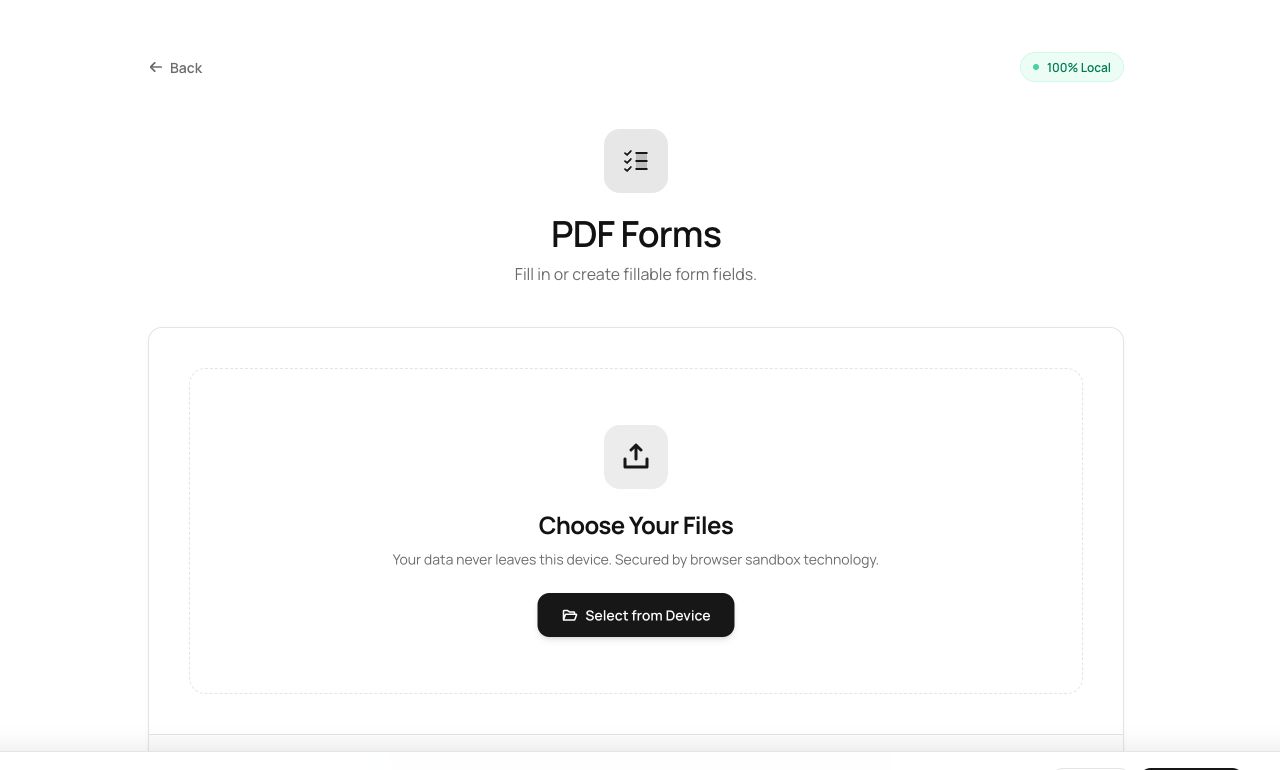
- Open Fill PDF Forms and choose the form - its fields are detected and listed as real inputs.
- Type your answers; checkboxes and dropdowns behave like the form intended.
- Optionally flatten (answers become permanent), then process and download.
Try it now: open the Fill PDF Forms tool - no account, no upload, free.
What happens under the hood
The tool reads the form’s AcroForm field tree - names, types, options - and binds a proper input to each. Your values are written back into the field objects, so other readers see a correctly-filled form. Flattening then bakes appearances into the page and removes the editable fields.
Tips for better results
- Flatten before submitting anywhere you don’t want answers edited downstream.
- If a “form” has no fields, it’s just a picture of a form - use Edit PDF to type over it instead.
Privacy, in one sentence
Your file is read into your browser's memory, processed there by JavaScript and WebAssembly, and handed back to you as a download - no server ever sees a byte of it. Close the tab and nothing remains.