Aug 04, 2026 · 3 min read · Guide
Pulling Specific Pages Out of a PDF (Without Acrobat)
The signature page of a 60-page agreement. The one chart from an annual report. Extraction is splitting with intent: name the pages, get a clean new PDF containing only them.
How to use it
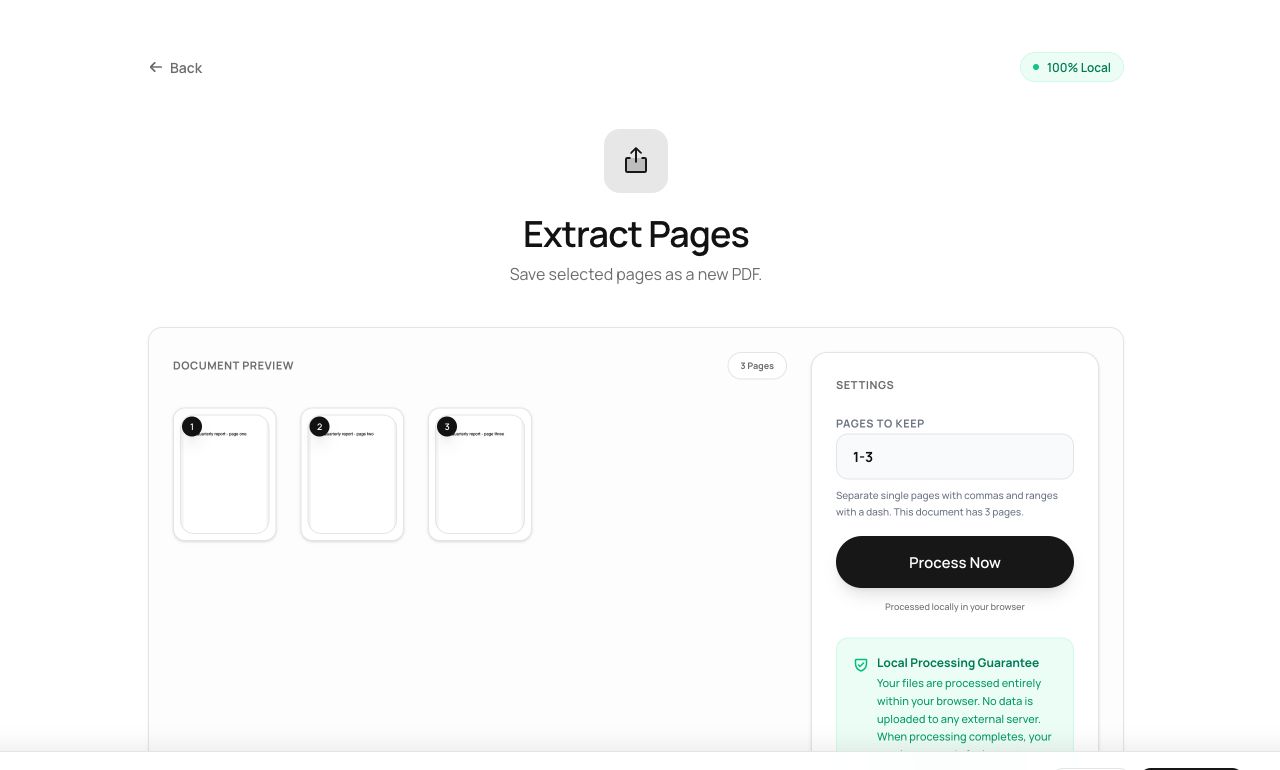
- Open Extract Pages and choose the source PDF.
- Enter the pages to pull out -
2, 4-6style ranges work. - Process, and download a new document holding just those pages.
Try it now: open the Extract Pages tool - no account, no upload, free.
What happens under the hood
Selected pages are copied into a fresh PDF with their complete resources - fonts, images, and graphics come along, so the extracted page looks identical to the original. The source document is never modified.
Tips for better results
- Extraction keeps the page exactly as it was, including anything invisible on it - if the page needs cleansing, follow with Remove Metadata or Redact.
- For “everything except these pages”, use Delete Pages instead - it’s the same operation from the other direction.
Privacy, in one sentence
Your file is read into your browser's memory, processed there by JavaScript and WebAssembly, and handed back to you as a download - no server ever sees a byte of it. Close the tab and nothing remains.