Jul 31, 2026 · 5 min read · Convert
PDF to Word on Your Own Machine: How Conversion Really Works
PDF is a printing format: it knows where every letter sits, and nothing else. Word is an editing format: it thinks in paragraphs, headings and flowing text. Converting between them means reconstructing structure the PDF never stored - which is why converters differ so much, and why it matters that this one does its guessing on your machine.
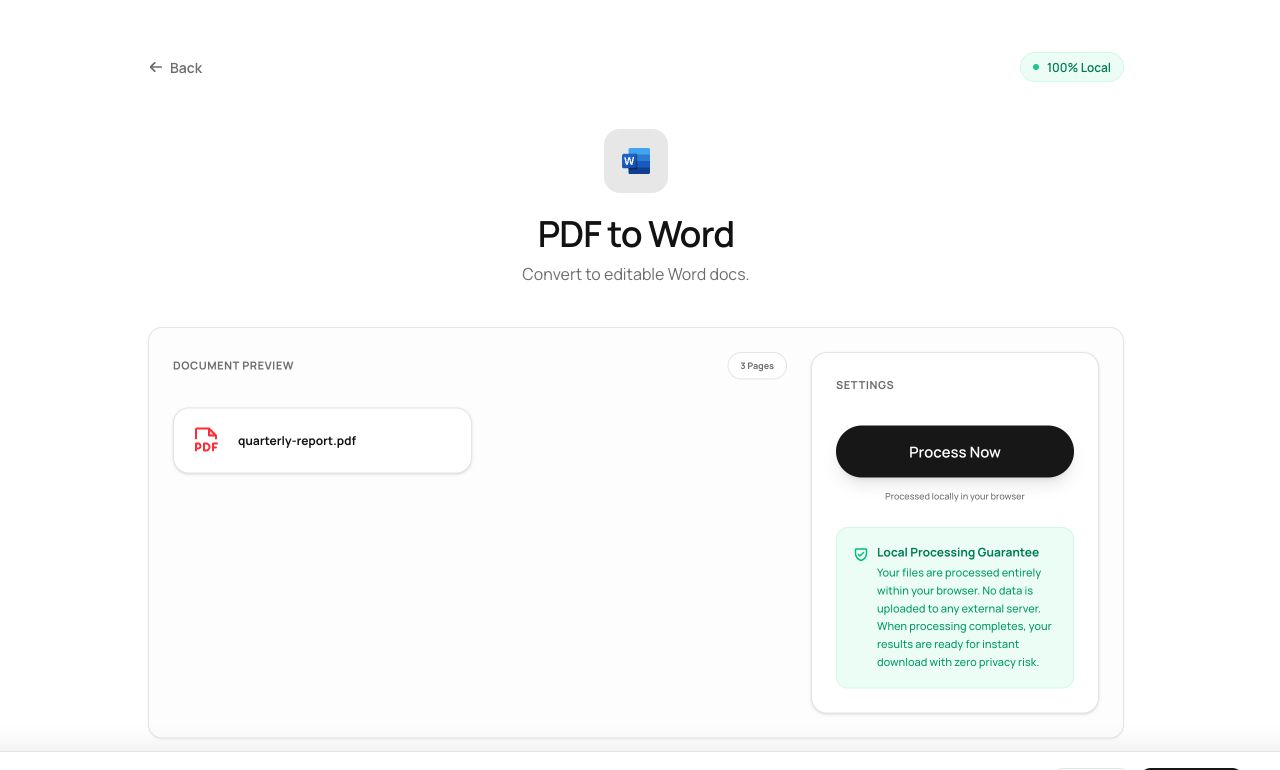
How to use it
- Open PDF to Word and choose your PDF.
- Process - text, positions and font sizes are analyzed page by page.
- Download the .docx and open it in Word, Google Docs or LibreOffice.
Try it now: open the PDF to Word tool - no account, no upload, free.
What happens under the hood
The converter reads the text layer with exact coordinates, then infers structure: lines whose font is much larger than the body become headings, consistent left edges become paragraphs, gaps become breaks. The result is written as a genuine DOCX (a ZIP of XML, built in your tab) - not a page image pasted into Word.
Tips for better results
- Clean, digitally-created PDFs convert best. Scanned documents have no text layer - run OCR first, then convert.
- Complex magazine layouts (multi-column, pull quotes) reconstruct approximately; simple reports and letters reconstruct almost perfectly.
Privacy, in one sentence
Your file is read into your browser's memory, processed there by JavaScript and WebAssembly, and handed back to you as a download - no server ever sees a byte of it. Close the tab and nothing remains.