Jul 31, 2026 · 4 min read · Convert
Exporting PDF Pages as Sharp JPG or PNG Images
Sometimes a page needs to be a picture: for a slide, a tweet, a thumbnail, a place where PDFs can’t go. The only setting that really matters is resolution - and it’s the one most converters hide.
How to use it
- Open PDF to Image and choose the file.
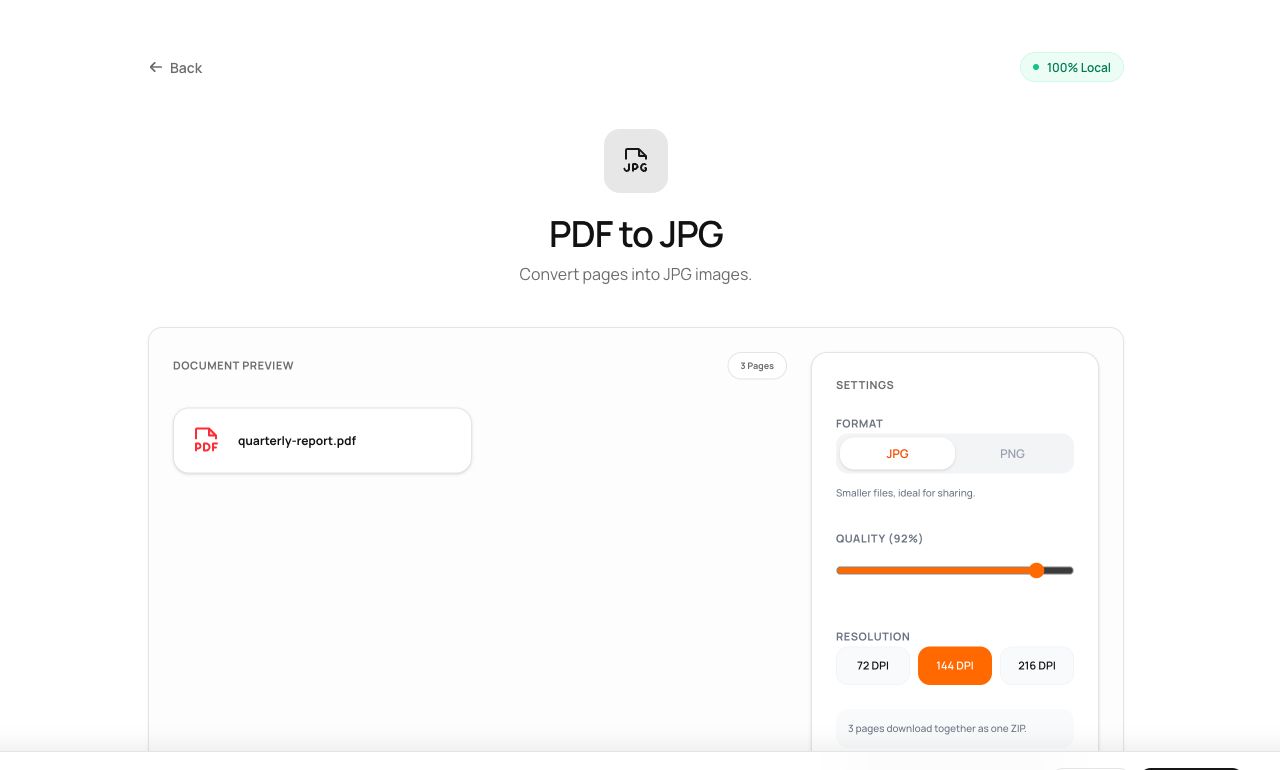
- Pick format (PNG for text and graphics, JPG for photo-heavy pages) and scale.
- Process. One page downloads as a single image; multiple pages arrive as a ZIP.
Try it now: open the PDF to Image tool - no account, no upload, free.
What happens under the hood
Each page is rendered by pdf.js - the engine inside Firefox - onto a canvas at your chosen scale, then encoded to PNG or JPG. Scale 2 (144 DPI) suits screens; scale 3+ (216 DPI and up) survives print and zooming.
Tips for better results
- Blurry output always means the scale was too low for the use - render at 2× the size you think you need.
- PNG keeps hard edges (text, lines) pixel-crisp; JPG halves the size of photographic pages.
Privacy, in one sentence
Your file is read into your browser's memory, processed there by JavaScript and WebAssembly, and handed back to you as a download - no server ever sees a byte of it. Close the tab and nothing remains.