Aug 05, 2026 · 4 min read · Guide
Merging PDFs Without Uploading Them: A 30-Second Walkthrough
Combining PDFs is the single most common document task there is - assembling a report from chapters, stapling an appendix to a contract, turning a folder of statements into one file for your accountant. It is also the task people most often upload their documents to a stranger’s server to do. This tool does the same job in your browser’s memory.
How to use it
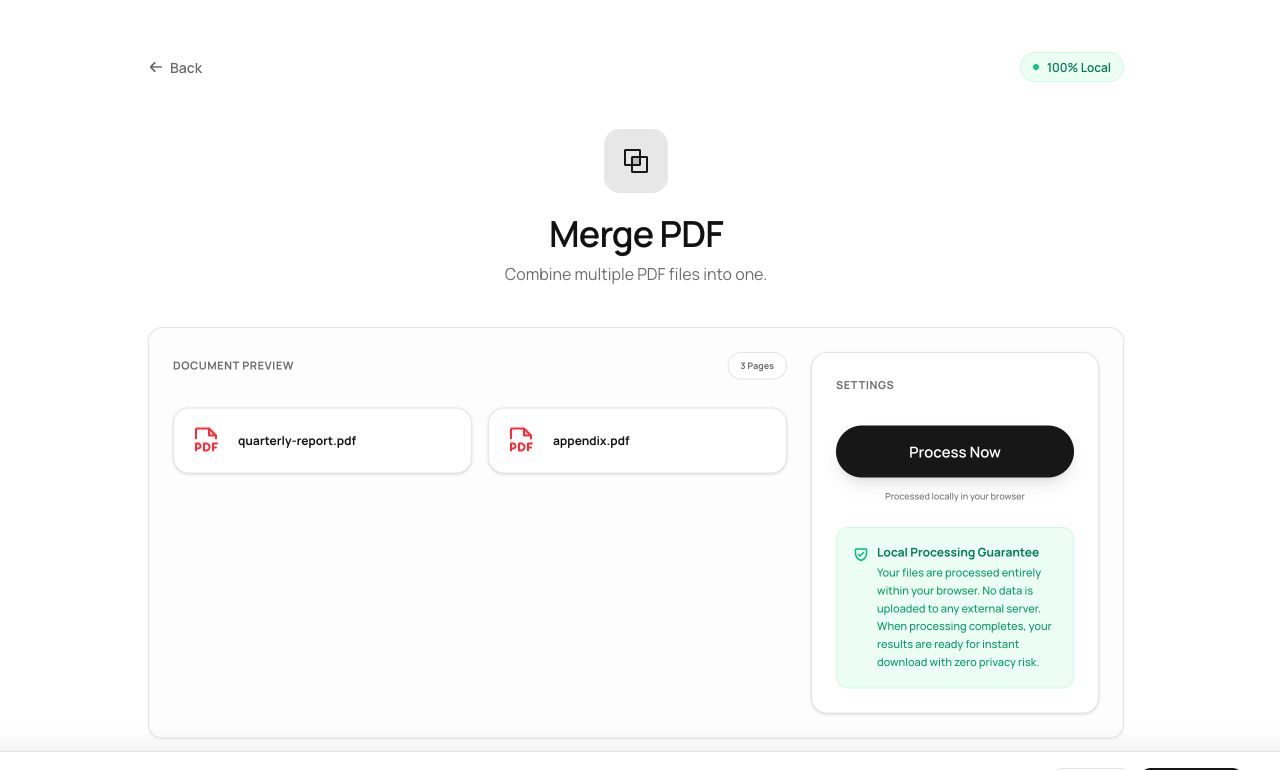
- Open the Merge tool and choose two or more PDF files (or drag them in).
- Reorder them - the list order is the output order.
- Click Process Now. The merged file is assembled in memory in a second or two.
- Download the result. Refresh the tab and every trace of the files is gone.
Try it now: open the Merge PDF tool - no account, no upload, free.
What happens under the hood
The tool loads each PDF with a full PDF engine (pdf-lib) running as JavaScript in your tab, copies every page object - content streams, fonts, images - into a fresh document, and serializes it back to bytes. Because pages are copied whole, nothing is re-rendered or recompressed: text stays selectable, vector graphics stay sharp, and a 300-page merge finishes in seconds.
Tips for better results
- Mixed page sizes are preserved as-is - merging an A4 report with a Letter appendix produces a file with both sizes, which is usually what you want.
- Bookmarks from source files don’t carry over; add a fresh outline with the Add Bookmarks tool after merging.
- For very large merges, close other heavy tabs first - the work happens in your browser’s RAM.
Privacy, in one sentence
Your file is read into your browser's memory, processed there by JavaScript and WebAssembly, and handed back to you as a download - no server ever sees a byte of it. Close the tab and nothing remains.