Aug 03, 2026 · 3 min read · Guide
Trimming PDF Margins for Reading and Reprinting
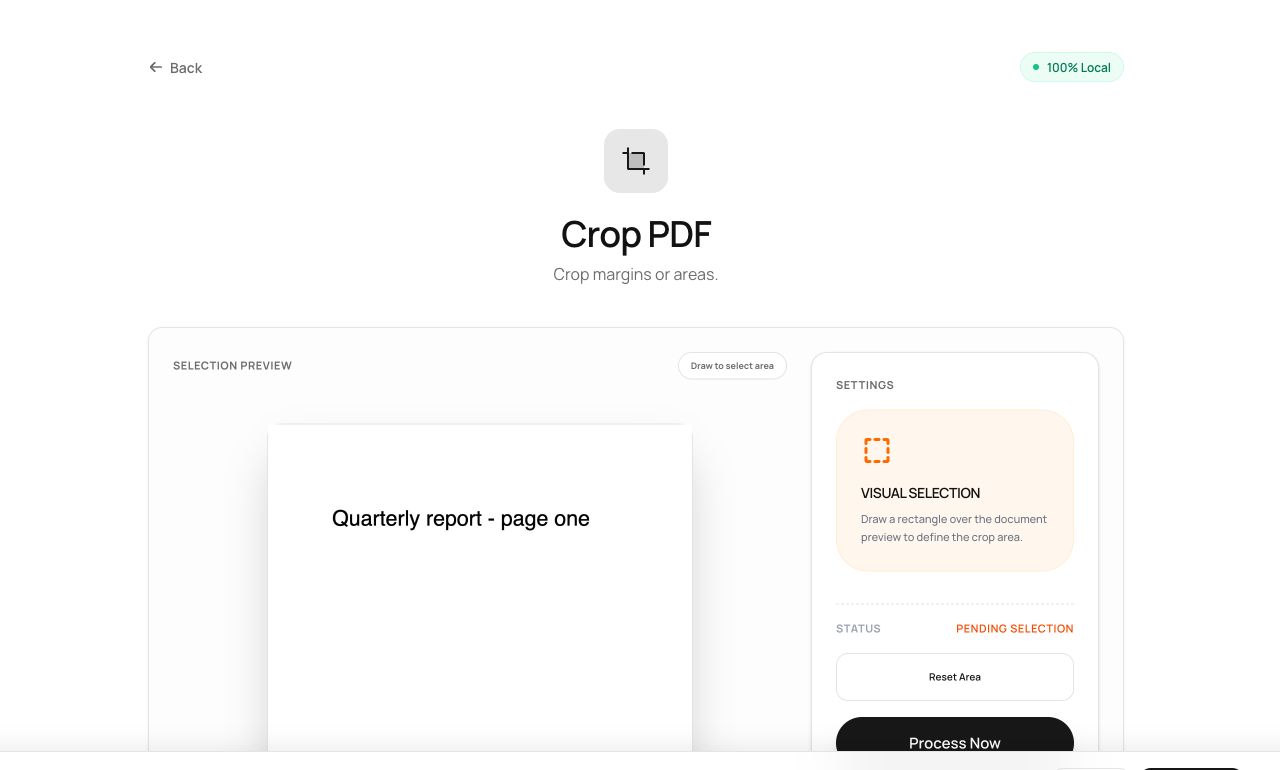
Scanner borders, punch-hole shadows, and margins designed for binding all waste screen space and toner. Cropping trims every page at once, with a preview so you see the cut before you commit.
How to use it
- Open Crop PDF and choose the file.
- Set the margins to trim - the live preview shows the crop box on a real page.
- Process and download the tightened document.
Try it now: open the Crop PDF tool - no account, no upload, free.
What happens under the hood
The tool adjusts each page’s crop box - the rectangle viewers actually display - rather than deleting content. It’s non-destructive at the format level, standard practice in prepress, and completely reversible by resetting the box.
Tips for better results
- Crop for reading on tablets: killing 25mm margins makes body text meaningfully larger at fit-width zoom.
- Because content outside the box still exists in the file, use Redact when the goal is removing something sensitive near the edge, not just hiding it.
Privacy, in one sentence
Your file is read into your browser's memory, processed there by JavaScript and WebAssembly, and handed back to you as a download - no server ever sees a byte of it. Close the tab and nothing remains.