Jul 22, 2026 · 3 min read · Edit
Cropping Images in the Browser, Down to the Pixel
Cropping is the edit that fixes most photos: kill the clutter, center the subject, match the aspect ratio the destination demands.
How to use it
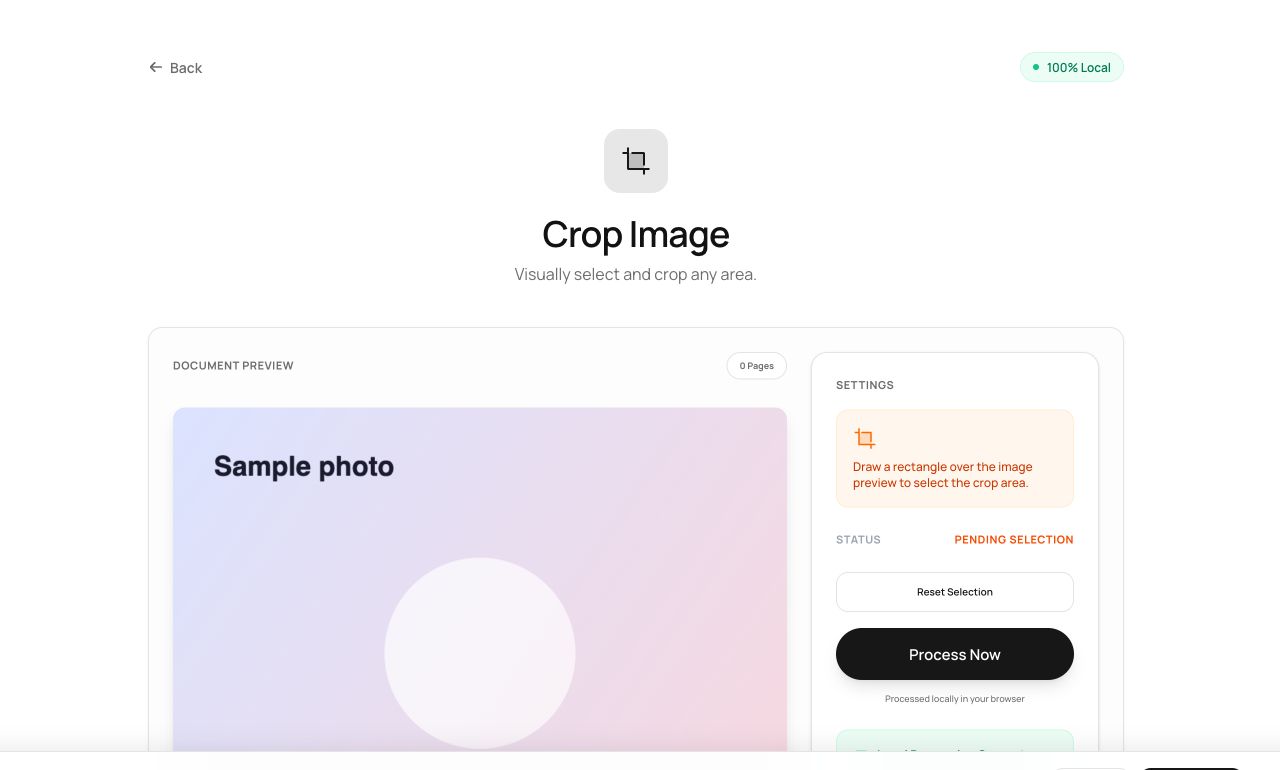
- Open Crop Image and choose the photo.
- Drag the crop box - or enter exact pixel coordinates when precision matters.
- Process and download only what’s inside the box.
Try it now: open the Crop Image tool - no account, no upload, free.
What happens under the hood
The selected region is copied to a fresh canvas and encoded as a new file. Pixels outside the crop don’t travel along invisibly - unlike some editors’ “non-destructive” crops, the output genuinely contains only what you kept.
Tips for better results
- For screenshots destined for docs, crop tight to the UI element - context you didn’t crop is context reviewers must ignore.
- That “genuinely gone” property matters for privacy: cropping a bystander out actually removes them.
Privacy, in one sentence
Your file is read into your browser's memory, processed there by JavaScript and WebAssembly, and handed back to you as a download - no server ever sees a byte of it. Close the tab and nothing remains.