Aug 02, 2026 · 4 min read · Guide
Spotting Every Change Between Two PDF Versions
Version four of the contract arrived and “only the dates changed.” Trusting that sentence has burned enough people that diffing PDFs is a professional reflex. This tool renders both versions and tints every changed region red - locally, so neither version is disclosed to anyone.
How to use it
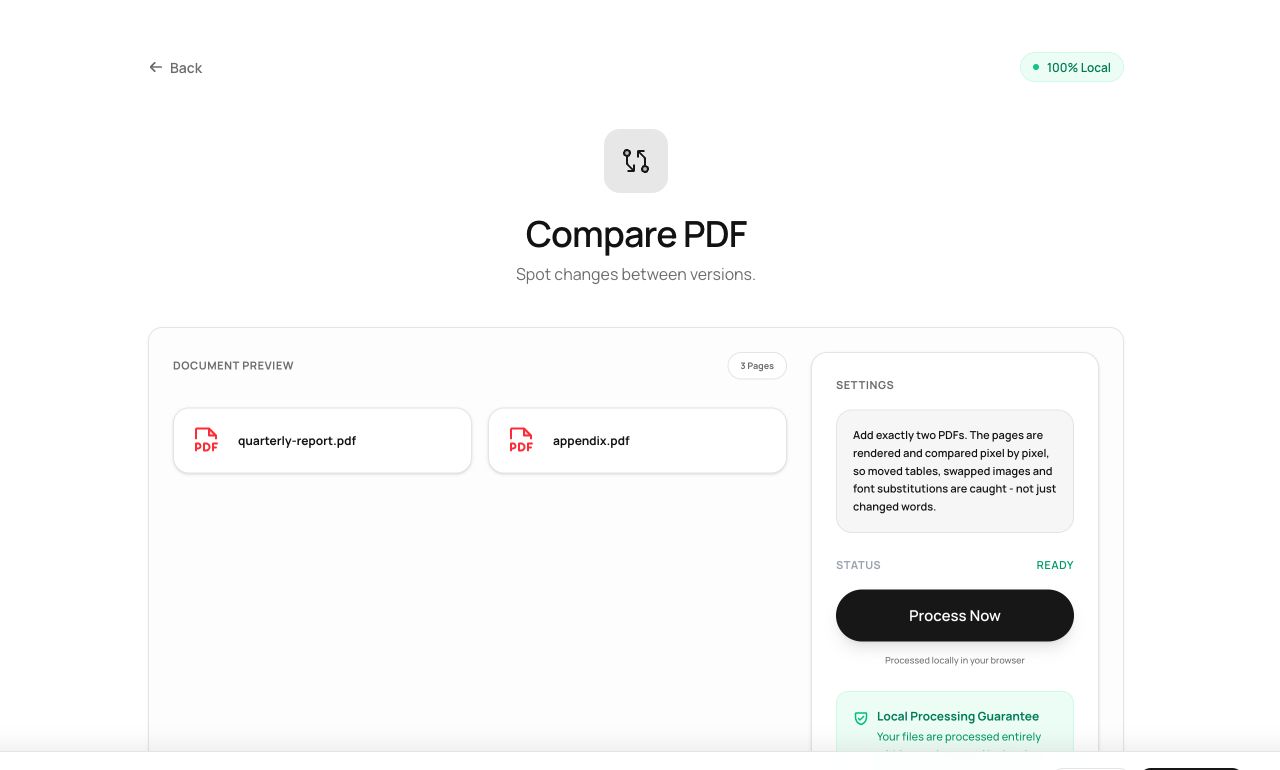
- Open Compare PDFs and choose the two versions (old and new).
- Process - each page pair is rendered and compared.
- Download the result: a PDF where every visual difference is highlighted, page by page.
Try it now: open the Compare PDFs tool - no account, no upload, free.
What happens under the hood
Both documents are rasterized page-by-page in your tab, then compared pixel-cluster by pixel-cluster with a tolerance threshold that ignores rendering noise but catches real edits. Changed regions are tinted on top of the original page so you see differences in context.
Tips for better results
- Visual comparison catches everything that displays differently - moved paragraphs, changed numbers, swapped images - but treats reflowed text as one big change; compare section by section for heavily re-edited documents.
- The summary lists which pages changed, so a 90-page “only the dates” claim takes ten seconds to verify.
Privacy, in one sentence
Your file is read into your browser's memory, processed there by JavaScript and WebAssembly, and handed back to you as a download - no server ever sees a byte of it. Close the tab and nothing remains.